How to Set Different Scroll Directions for Trackpad and Mouse on Mac
When I work on my MacBook, I use its built-in trackpad. When it is connected to an external monitor in clamshell mode, I use a Magic Trackpad. This was my daily setup for years until I recently got back into gaming.
I bought a Razer vertical mouse and started playing Quake III again. I still use the external trackpad for everyday work, but occasionally switch to the mouse.
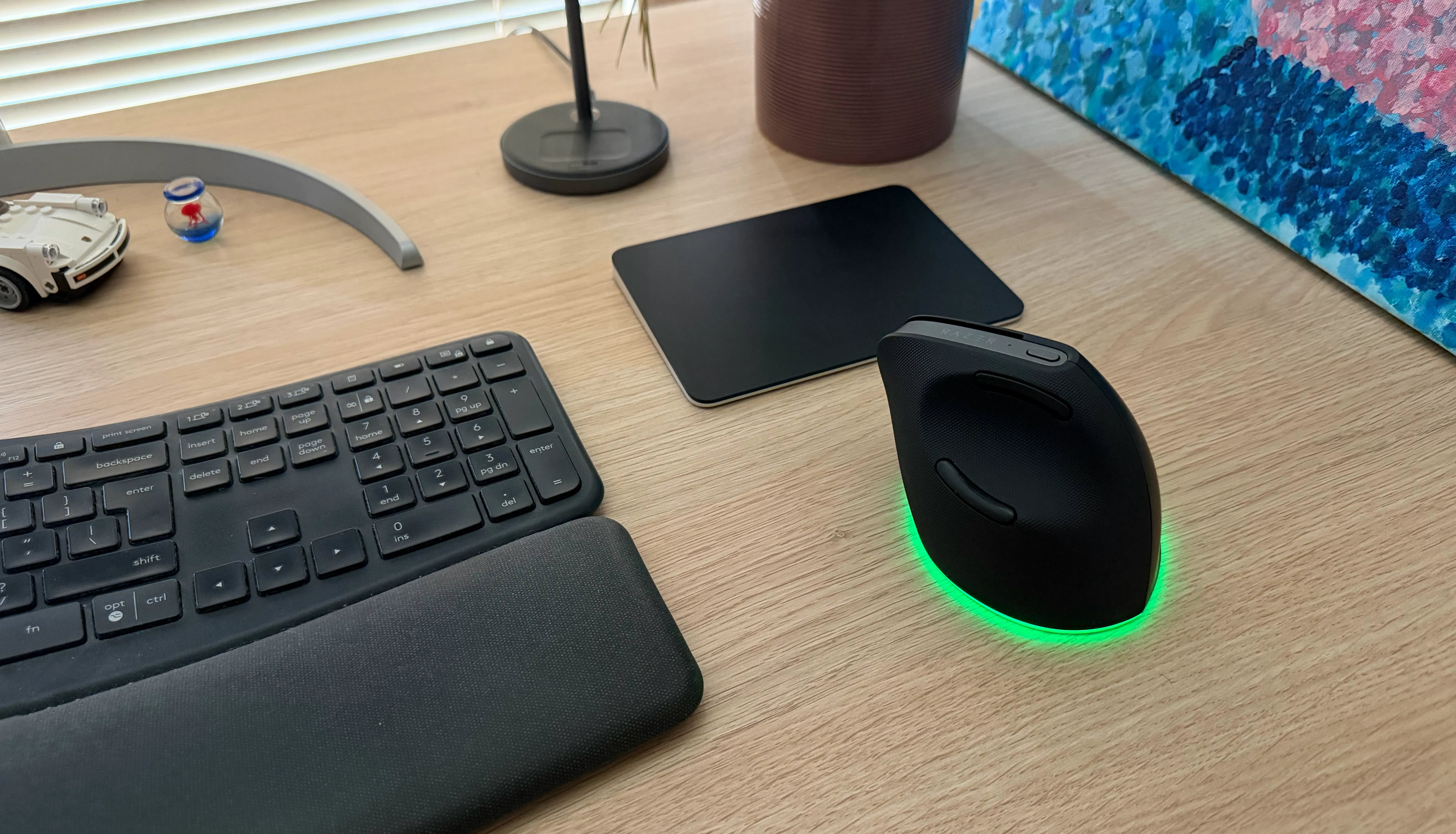
That’s when I ran into a small but annoying problem. Natural scrolling feels right to me on a trackpad, where the content follows the movement of my fingers. With a mouse wheel, I prefer the traditional scrolling direction.
One setting for two different devices
macOS has a Natural scrolling option in both the Trackpad and Mouse settings. However, it doesn’t let me keep a different choice for each device. Turning it off for the mouse also changes how scrolling works on the trackpad.
As a result, every time I switched devices, I had to open System Settings and turn Natural scrolling on or off again. I could probably get used to using the same direction on both, but neither option felt right everywhere.
Using Scroll Reverser
I started looking for a way to set the scrolling direction separately and found Scroll Reverser. It is a small, free, and open-source app made specifically for this problem.
You can download it from its website, unzip it, and move it to the Applications folder. It is also available through Homebrew:
brew install scroll-reverserWhen you first open Scroll Reverser, it asks for Accessibility permission. The app needs it to receive scrolling events and change their direction. After granting the permission, scroll once with each device so that both appear in the app’s settings.
Each detected mouse and trackpad gets its own setting. You can choose between Natural, Classic, and Unchanged scrolling. Trackpads use Natural by default, while mice use Classic, which was exactly the combination I wanted.
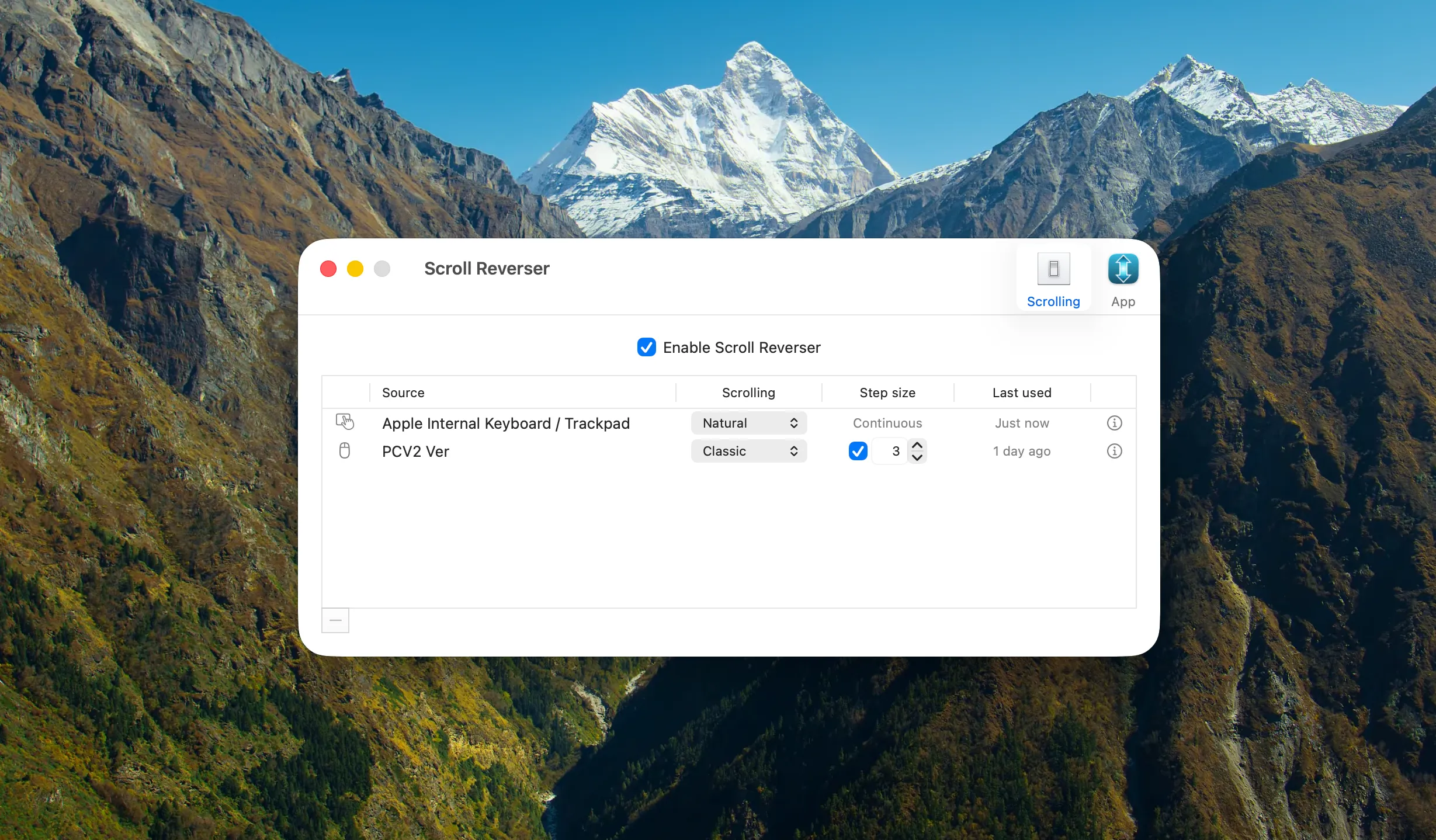
That was almost the whole setup. I enabled the option to start Scroll Reverser at login and closed its settings. The app now sits in the menu bar and works in the background.
Switching between the mouse and trackpad
There isn’t much more to say about using it, and I mean that as a compliment. I can move from the Magic Trackpad to the mouse without thinking about the scroll direction or opening System Settings first. So far, I haven’t needed to adjust anything after the initial setup.
Scroll Reverser also includes a step size setting for mouse wheels. It lets you control how far a page moves with each step of the wheel instead of using the default macOS scroll acceleration. I left it at its default value because scrolling already felt fine with my mouse.
Scroll Reverser’s main appeal is being able to use different scrolling directions for a mouse and a trackpad. If you use just one of them, the setting built into macOS is probably enough.
For my setup, however, it fixes exactly what was bothering me. It took only a minute to configure, then stayed out of the way and made switching between the trackpad and mouse feel natural again.