Haptiker Turns Your Mac Trackpad Edges Into Controls
I run a Mac app directory called All Mac Apps, where I occasionally add apps I discover or include apps submitted by users and developers.
This week, while going through the submissions, an app called Haptiker caught my attention. First, its website looked polished, and the visuals explained the idea so well that I immediately wanted to try the app myself.
Second, and more importantly, it appeared to solve two problems I already had: precisely adjusting the screen brightness and controlling the keyboard backlight.
Why the regular controls don’t work for me
I sometimes change where I work at home, or the lighting simply changes during the day. When I adjust the display brightness, the regular F1 and F2 steps rarely give me the level I want. The screen ends up either too dark or too bright, so I reach for the slider to find the right spot.
I don’t have the same problem with sound, though. Adjusting the volume with F11 and F12 feels precise enough. Maybe my ears simply aren’t as sensitive to the exact volume level as my eyes are to display brightness.
The keyboard backlight is another small annoyance. I normally keep it turned off, but sometimes I move to a darker place and need it again. Older MacBooks had keyboard-backlight controls on F5 and F6. On newer models, those keys have been replaced with Dictation and Focus controls, so adjusting the backlight now means opening System Settings.
Turning the trackpad edges into controls
Haptiker works by using the edges of the MacBook’s trackpad. The left edge adjusts the display brightness, the right edge controls the speaker volume, and the top edge is for the keyboard backlight.
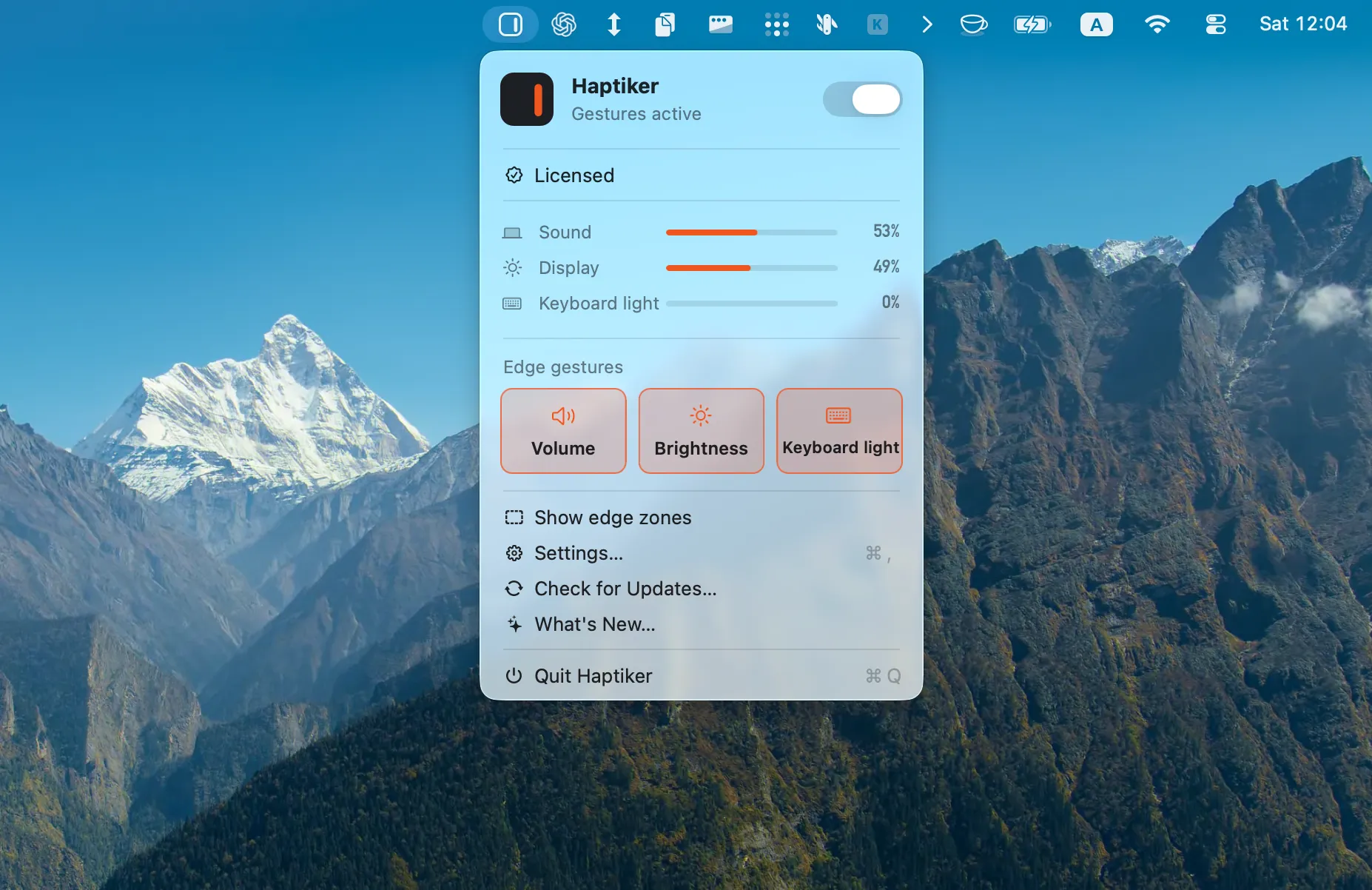
Installation is simple. Download the DMG, open it, and move the app to the Applications folder. You also need to grant it Accessibility permission because it has to read touch gestures from the trackpad.
Once launched, the app sits in the menu bar and waits for gestures. To increase the brightness, slide a finger up along the left edge of the trackpad. Sliding down lowers it. The brightness changes in small steps, making it much easier to find the exact level I like.
The same goes for volume, except that it uses the right edge. Sliding along the top edge controls the keyboard backlight, so I no longer have to open keyboard settings when I need it.
Haptiker also provides haptic feedback as the values change. Is it useful? Probably, but to be honest, I didn’t really notice it until I was asked about it.
Accidental adjustments while typing
At first, everything worked great while I was just lightly browsing the internet. Once I started typing more, however, I began changing either the brightness or volume unintentionally.
Maybe my hands are too big, or maybe it is the way they rest on the MacBook while I type. It doesn’t mean everyone will have the same problem. In my case, though, it happened often enough to become annoying.
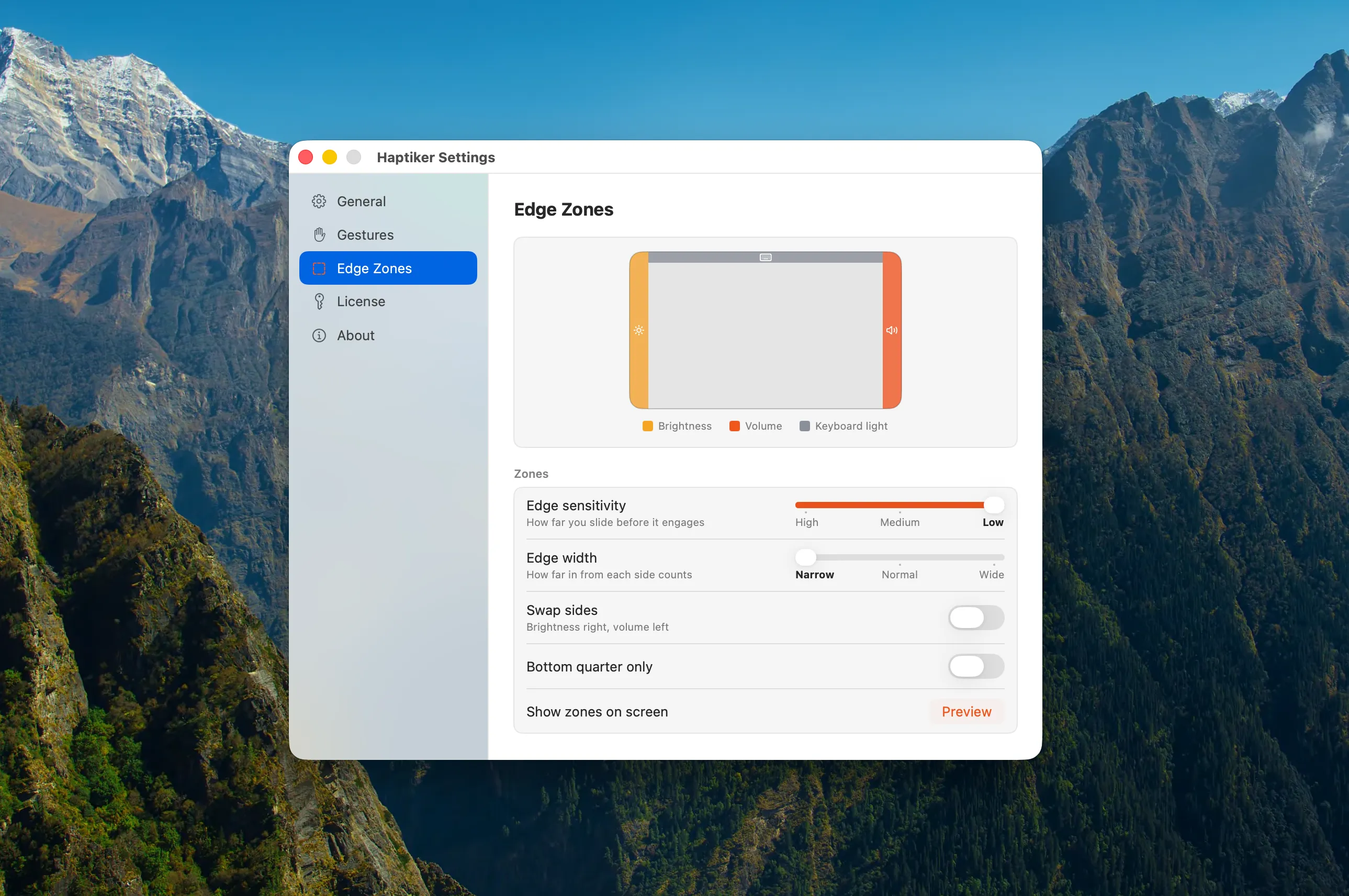
Haptiker offers a few ways to deal with this. You can adjust the sensitivity and the width of the edges that detect your touches. Neither setting solved the problem for me. Limiting the active zones to the bottom quarter of the trackpad helped a bit, but didn’t completely stop the accidental adjustments.
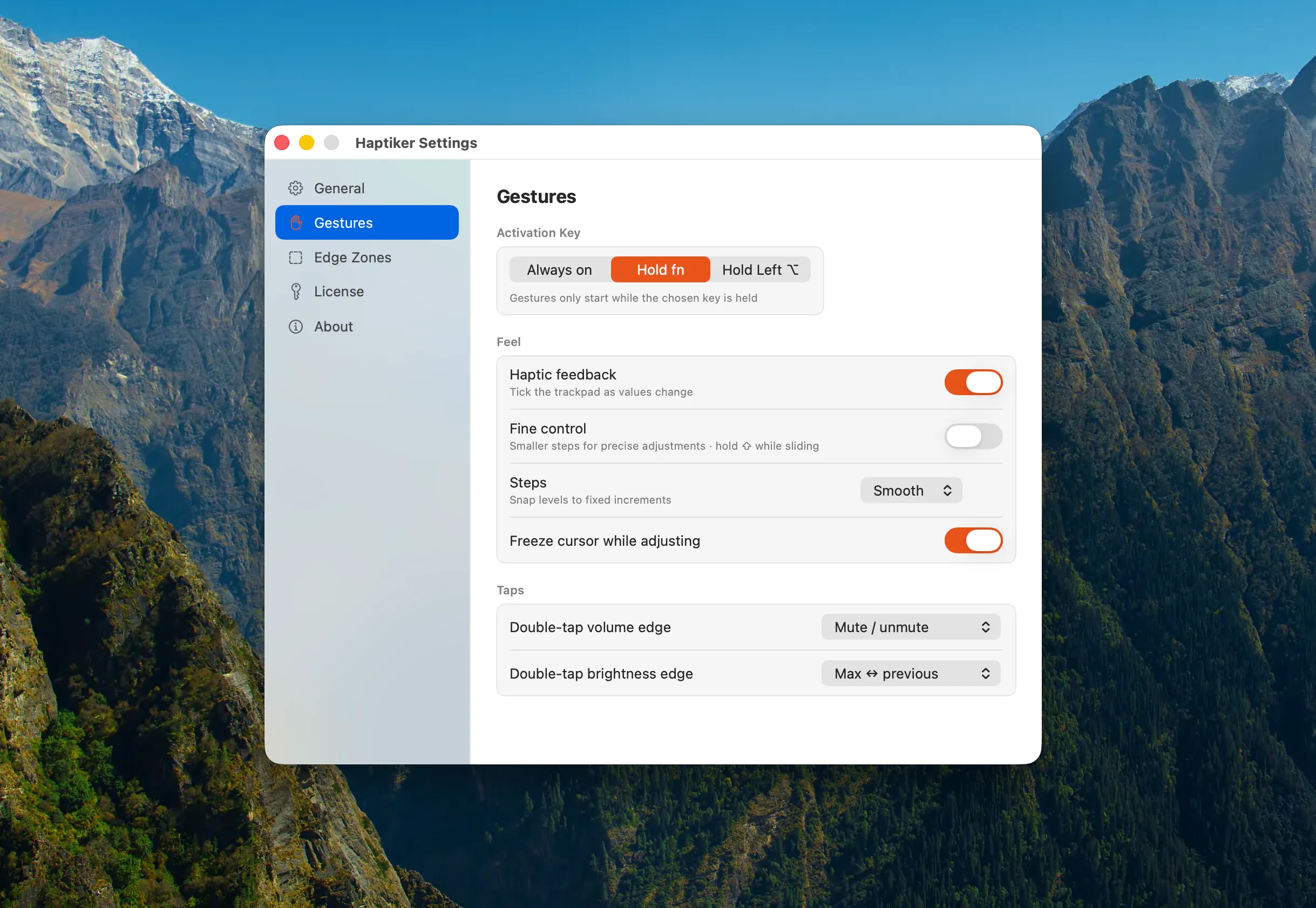
In the end, I switched from having the zones always active to using the Fn key for activation. That way I no longer changed anything accidentally, and pressing Fn wasn’t a big downside.
Will I keep using Haptiker?
I did notice that Haptiker occasionally quit on its own. Sometimes, after a few hours, the brightness control stopped working and the Haptiker icon disappeared from the menu bar. I reported it to the developer, and they fixed it very quickly. I haven’t had the problem again since installing the update.
In the end, I liked Haptiker, and I’m going to keep using it. The brightness control solves a real problem for me, while requiring the Fn key prevents the app from getting in the way when I type.
Haptiker has a 7-day free trial. I paid $5 for the app and bought it myself.