
My Mac menu bar was getting crowded
Since I started trying a new Mac app every week, more and more icons have appeared in my menu bar.
I only need three of them to remain visible: the input source switcher, Wi-Fi indicator, and battery level. The other icons are still useful, but I don’t need to see them all the time.
I knew about menu bar managers, but I had never tried one. As the right side of my menu bar kept growing, I decided it was finally time.
When I started looking for one, two apps appeared most often: Bartender, a feature-rich paid app, and Ice, a free and open-source alternative.
I only wanted a simple way to hide some of my menu bar icons, so I decided to try Ice first.
Trying Ice first
I installed Ice through Homebrew. When I opened it, it asked for Accessibility and Screen Recording permissions. Since it said that Ice can work without Screen Recording, I skipped it. Screen Recording isn’t a permission I rush to grant.
At first, Ice did exactly what I needed. It hid all my other menu bar icons, leaving only the Ice icon visible. Icons can be configured to remain visible by holding the Command key and dragging them to the right side of the Ice icon. Icons that remain on the left stay hidden and appear only when the Ice icon is clicked.
However, while I was tinkering with Ice settings, the app crashed. After opening it again, an update dialog appeared that I couldn’t close. Clicking the Ice icon caused the app to crash again, so I eventually gave up.
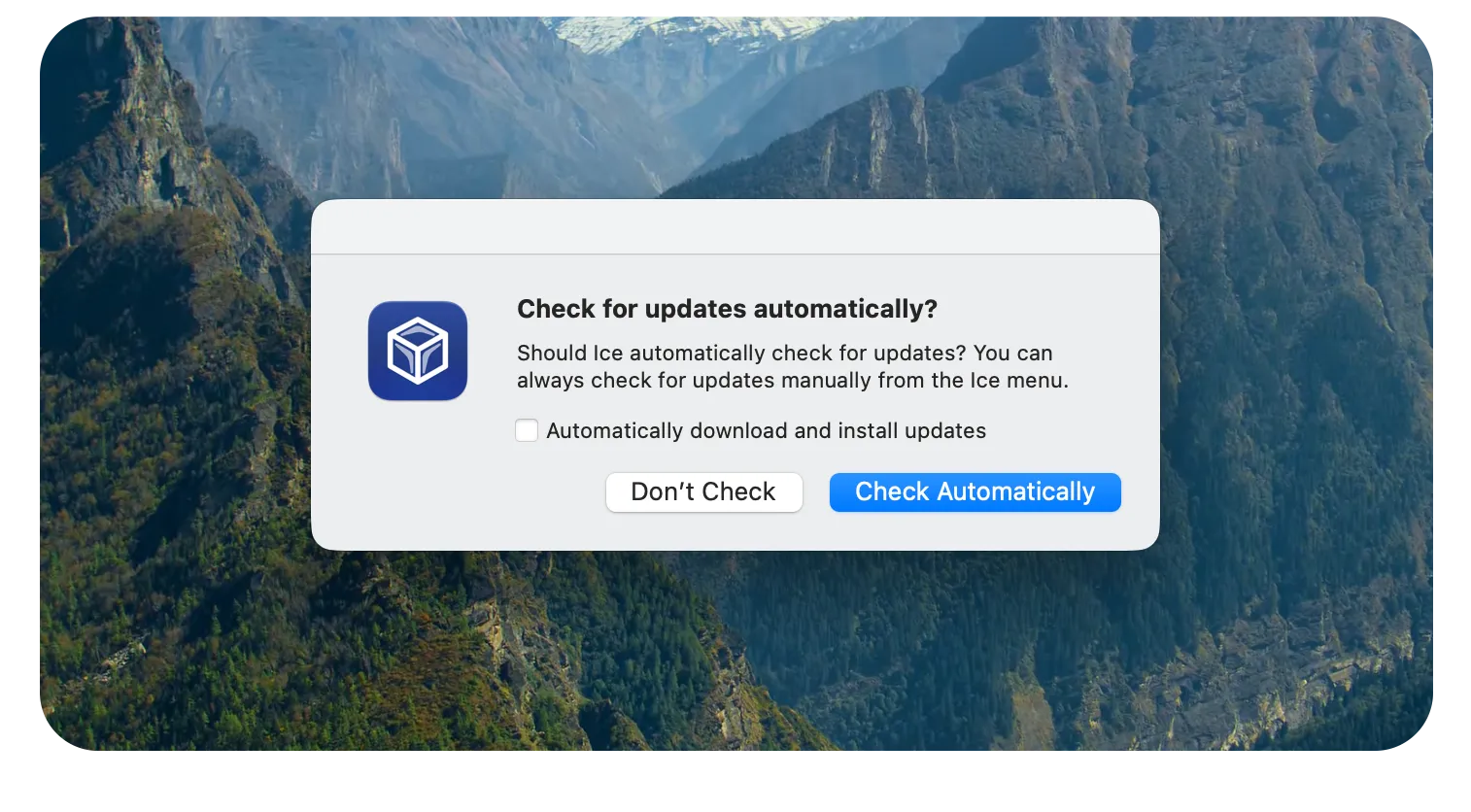
When I looked at the project’s GitHub page, Ice no longer seemed to be actively maintained. I found an actively maintained fork called Thaw, so I decided to try it next.
Switching to Thaw
I installed Thaw using Homebrew. When I opened it, I saw a permission dialog similar to Ice’s. Once again, I granted the Accessibility permission but skipped Screen Recording.
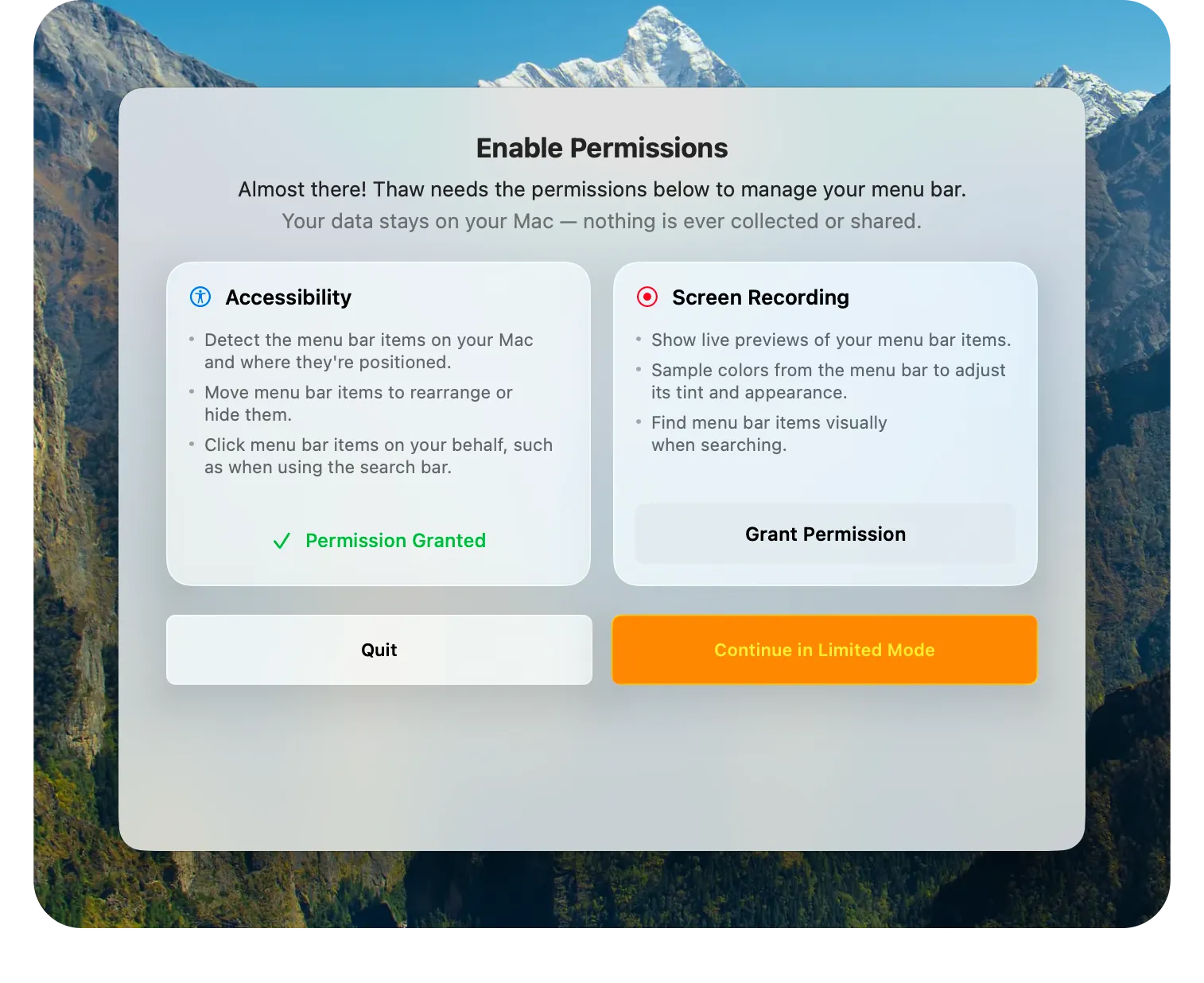
Configuring which icons should remain visible worked the same way as in Ice. I moved the icons I wanted to keep visible to the right side, while the rest stayed hidden on the left side of the Thaw icon.
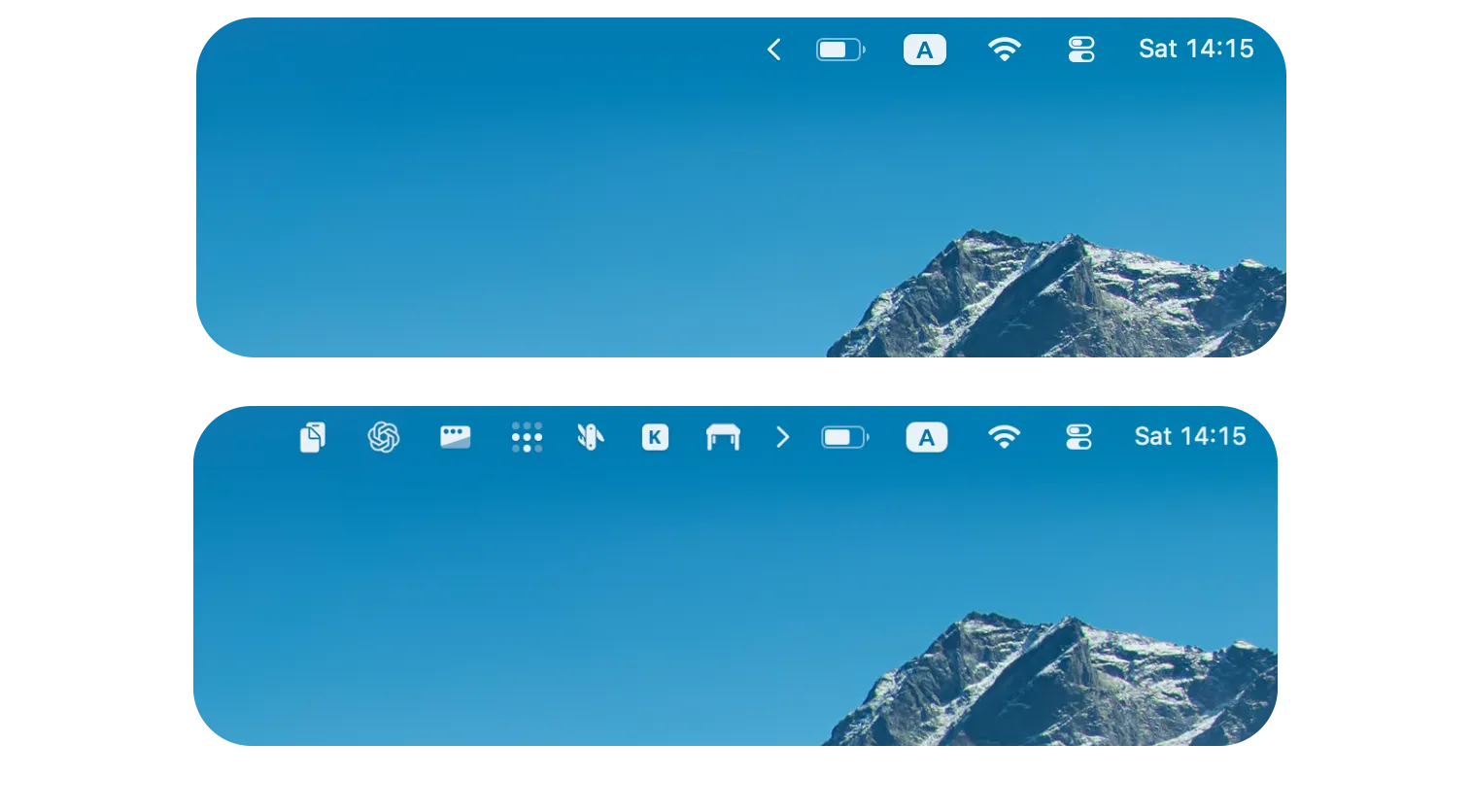
I’ve been using Thaw for almost a week, and it hasn’t crashed once. Showing all icons and hiding them again automatically works like a charm.
In addition to the default configuration, I only added a keyboard shortcut to toggle all icons using ⌃⌥o. When I want to check whether Tailscale is connected, I press it and look at the app’s menu bar icon.
What else Thaw offers
Thaw offers much more than I need. It can show hidden icons in a separate bar, search for a menu bar item, and use different profiles depending on the connected display, current Space or Focus mode.
The appearance of the menu bar can also be customized with different colors, borders, shadows, and shapes. I prefer to keep its default appearance, so I haven’t used any of these options.
Thaw is free and open source. If your menu bar is becoming crowded, you can download Thaw from its GitHub page or install it through Homebrew with brew install thaw.