Three ways to keep your Mac awake
I work from two places at home. Most of the time, I sit at my desk with an external monitor and use my MacBook in clamshell mode. When I am making lunch or dinner for my family, I move to the dining table in the living room so I can work while keeping an eye on the food.
While something is cooking, I often step away from my MacBook for a few minutes. Sometimes that is enough for it to go to sleep. If Codex is working on a coding task, the task gets stuck until I return and wake the Mac.
Sleep also interrupts my Remote Desktop connection to my work Windows machine. A few times, it has even interrupted a large download.
I decided to find a convenient way to keep my Mac awake whenever I need to step away from it.
Lock Screen settings
The simplest solution would be to open the Lock Screen section in System Settings and increase the time before the display turns off when my MacBook is running on battery.
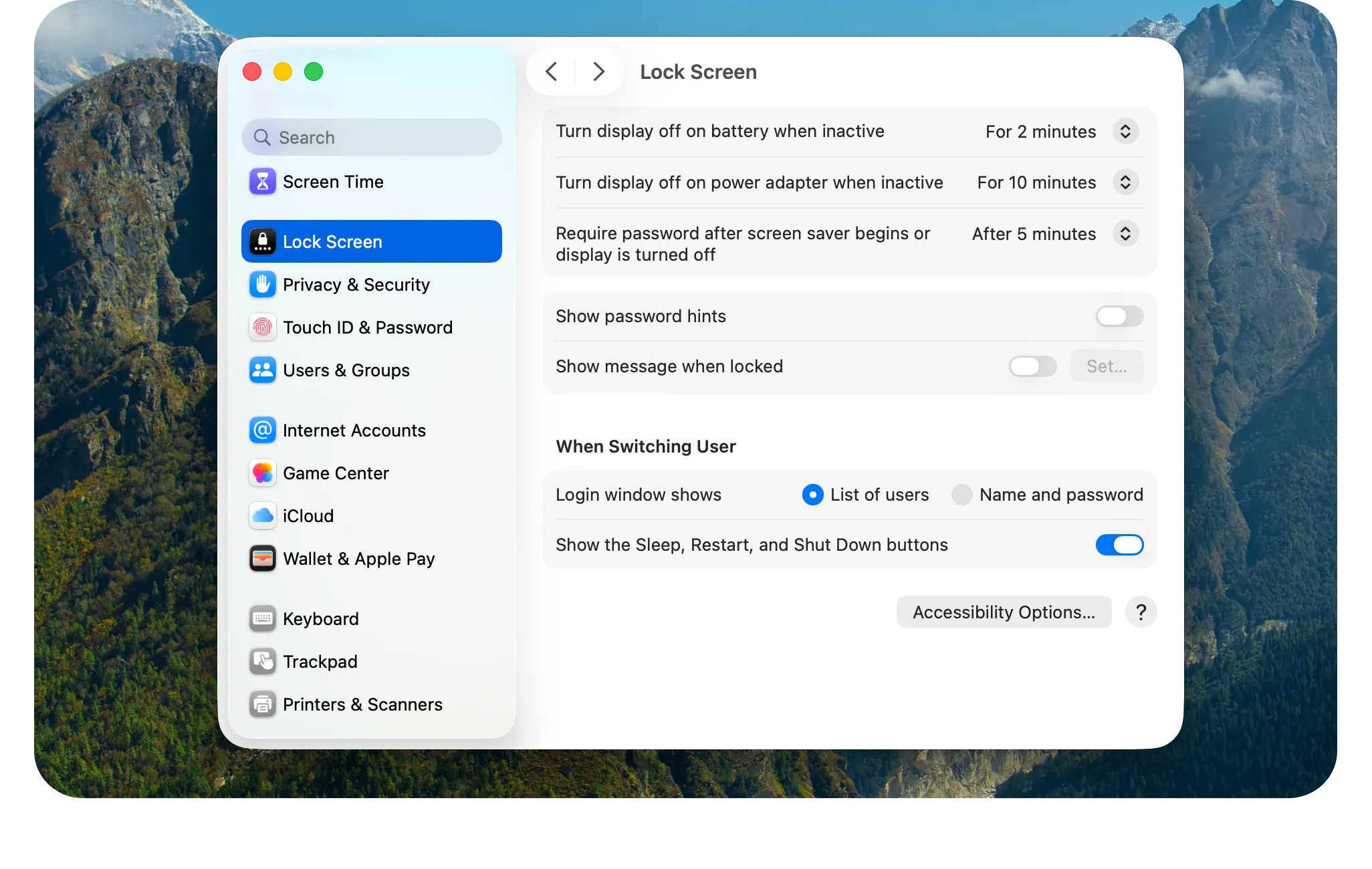
That would work, but I do not always need my Mac to remain awake when I step away. I only need it while a long task is running. Changing the setting before and after every such task would not be very convenient.
Using the built-in caffeinate command
macOS already includes a Terminal command called caffeinate. While it is running, it prevents the Mac from going into idle sleep, but the display can still turn off.
Running it without any options keeps the Mac awake until I stop the command by pressing ⌃C:
caffeinateIt can also stop automatically after a chosen amount of time. The duration is provided in seconds, so this command keeps the Mac awake for ten minutes:
caffeinate -t 600Another useful option is running caffeinate together with a longer Terminal command. It then keeps the Mac awake until that command finishes:
caffeinate -i your-commandI use Terminal every day, so none of this is difficult. Still, opening it and typing a command feels unnecessary when I only want to keep my Mac awake for a while. I wanted something I could control more quickly.
Using KeepingYouAwake
After trying caffeinate, I looked for a quicker way to do the same thing. KeepingYouAwake is a small menu bar app that uses caffeinate behind the scenes.
It can be downloaded from GitHub or installed using Homebrew:
brew install keepingyouawakeThe app shows a cappuccino cup in the menu bar. Clicking it once keeps the Mac awake, and clicking it again turns the app off. The filled cup means that KeepingYouAwake is active, while the empty cup means that the Mac can sleep normally.
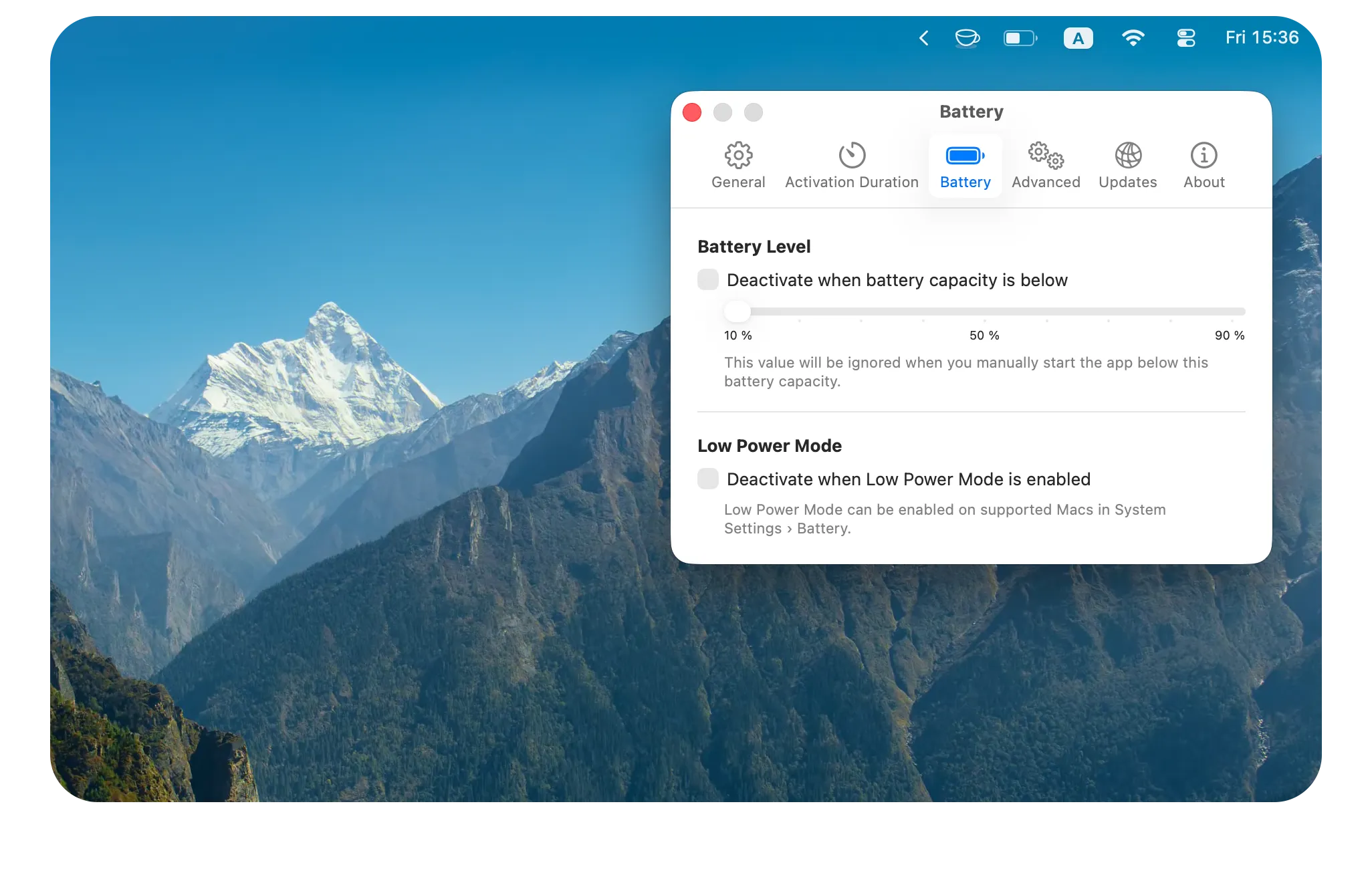
By default, it remains active until turned off, but it can also run for a predefined duration. It can automatically stop when the battery reaches a chosen level or when macOS enters Low Power Mode.
I think that covers everything needed. Instead of opening Terminal and entering a command, KeepingYouAwake can be controlled by clicking the cup, and its current state is immediately visible.
What I will use
I will keep KeepingYouAwake running in my menu bar. It is easy to turn on when I need it, and I can always see whether it is active.
I may still use caffeinate for the occasional long Terminal command. For example, I have a script that publishes updates for my Mac apps and usually takes around ten minutes to finish. Running it through caffeinate -i would keep my Mac awake and prevent the publishing process from being interrupted halfway through.
For everything else, clicking the cup in the menu bar is much more convenient.
Thumbnail photo by Sincerely Media on Unsplash.