Controlling my standing desk from the Mac menu bar
I have an IKEA IDÅSEN standing desk. It’s a great desk, but its controller has one annoying limitation. The desk can remember my preferred sitting and standing heights, but I still have to hold the up or down button until it reaches one of them.
This might not sound like a big problem. Holding a button isn’t hard, but when I adjust the desk many times a day, it gets annoying.
When I bought the desk, I tried the LINAK Desk Control companion app recommended by IKEA. As far as I remember, it could move the desk to a saved position automatically. However, reaching for my phone every time I wanted to adjust the desk was too cumbersome, so I kept using the physical controller.
This week, while thinking about which app I should review next, I decided to see whether there was a Mac app for this specific problem.
Searching for an app
The first Google result was an open-source app called Idasen Desk Controller. The project had almost 300 stars on GitHub, a nicely presented README with screenshots and a demo video, and a polished app icon. It looked promising.
However, after installing it, I discovered that it didn’t work. The project hasn’t been updated for several years, which may explain why it didn’t work on my Mac.
The next result was Desk Remote Control from the Mac App Store. I decided to try it.
Trying Desk Remote Control
I installed the app from the Mac App Store. Its basic features are free. The Pro version is available as a monthly or annual subscription, or a lifetime upgrade that costs €22.99.
Once installed, the app asked for permission to use Bluetooth.
Pairing the desk was easy. I pressed the Bluetooth button on my desk and then clicked Search in the app. The desk immediately appeared in the device list, and I connected it to the app.
I could adjust the desk height using the software buttons. I then saved two positions, one for sitting and another for standing. To save a position, I moved the desk to the right height and clicked the plus sign. The Pro version also lets you save a third position called Favorite.
Once the setup was finished, using the app was easy. When I want to switch between sitting and standing, I open the app from the menu bar and choose the position I want. The desk moves there automatically, so I no longer have to hold anything.
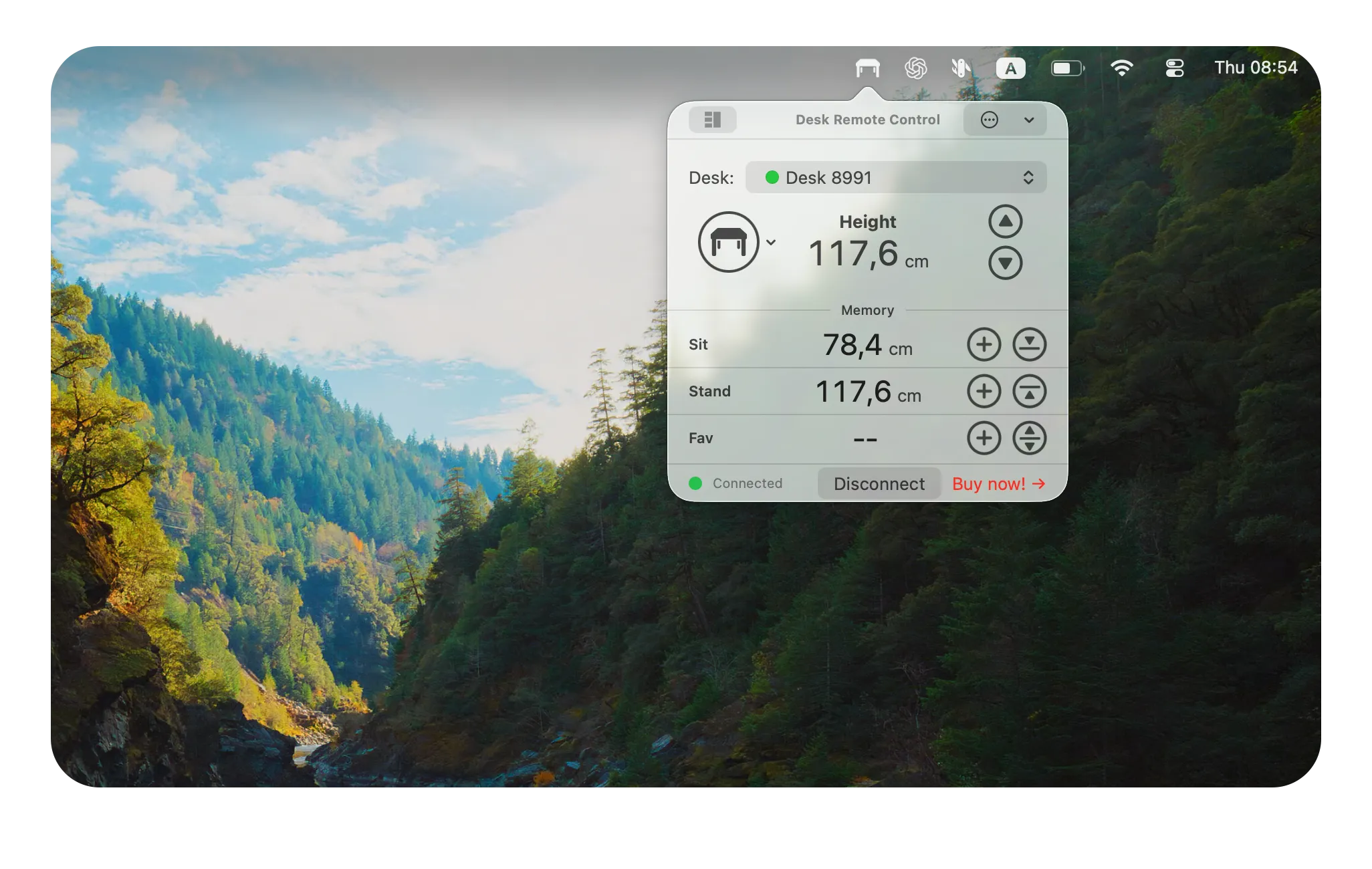
I’ve been using the app for three days, and it’s more convenient than using the physical controller on my desk. It would be even better if I could change positions using keyboard shortcuts, but that feature is only available in the Pro version.
The Pro version also includes reminders. You can choose how often the app should remind you to switch positions. This isn’t very relevant to me because I prefer to stand for as long as I can and sit down when I feel tired.
Is Desk Remote Control worth it?
I don’t plan to buy the Pro version because I find its price difficult to justify for the features I would use. However, I plan to keep the free version. It solves the exact problem I had and makes switching between sitting and standing much more convenient.
If you have a Bluetooth standing desk but its physical controller doesn’t have buttons for saved positions, I recommend giving Desk Remote Control a try. You can download it from the Mac App Store.