
DaisyDisk review: Where did all my Mac storage go?

I’ve been using my M1 MacBook Air for more than four years. It has only 512 GB of storage, and for most of that time, I’ve been fighting to free up space.
I usually clean my Downloads folder and Desktop, empty the Trash, and check the Applications folder for apps I haven’t used in a while. Reviewing large files in the Storage section of System Settings sometimes helps too.
There’s one category in the same settings that always makes me raise my eyebrows: System Data. It usually takes between 150 and 250 GB of space. What is it? Completely unclear. For a long time, I didn’t try to find out what it was.
Looking into System Data
When I first saw “System Data,” I thought it contained internal macOS files that I shouldn’t touch. But the Storage settings already had a separate “macOS” category. So what was inside System Data then?
According to Apple, System Data is a broad category for files that don’t fit into other categories such as Applications, Documents, Music, and Photos.
For example, an app is usually installed in the Applications folder. But it may also store logs, caches, temporary files, and downloaded resources elsewhere on your disk. If those files don’t fit into a more specific category, macOS may count them as System Data.
These files can be scattered across your disk, which makes finding them manually difficult. Thankfully, there are apps that make this task easier.
Finding an app
On Windows, I used an app called TreeSize to solve a similar problem. It scans your disk and shows a tree of folders sorted by how much space they take. You can go through the folders and quickly see what occupies most of your disk.
I liked how it worked and how it looked, so I searched for a similar app for macOS.
A quick search on Reddit revealed a few options. At the time of writing, their prices were:
- DaisyDisk ($9.99)
- OmniDiskSweeper (Free)
- GrandPerspective (Free from SourceForge or $2.99 from the Mac App Store)
- WhatSize ($14.99)
Out of all of them, DaisyDisk’s landing page made the best first impression, so I decided to try it.
First Impression
When you first open the app, it shows a list of your disks.
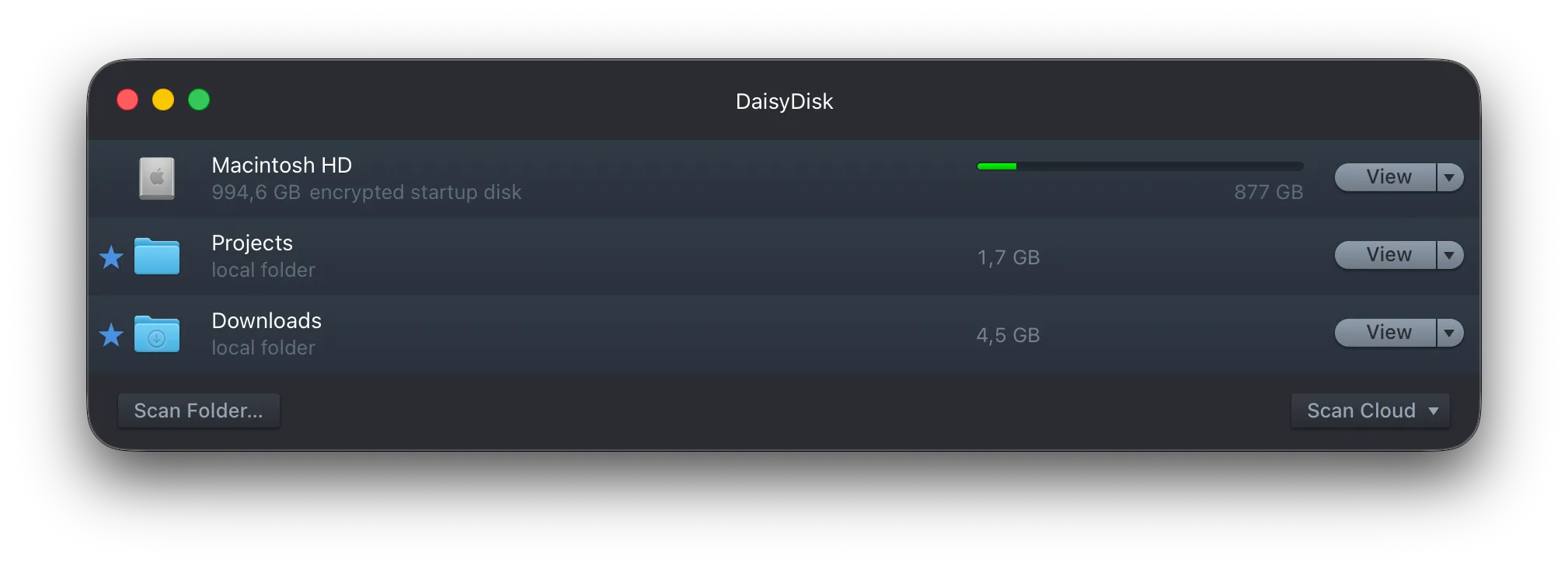
The interface is clear right from the start. You choose a disk or folder you want to inspect and scan it.
After I clicked the scan button and waited a short time, DaisyDisk showed me a sunburst chart with the folders on my disk.
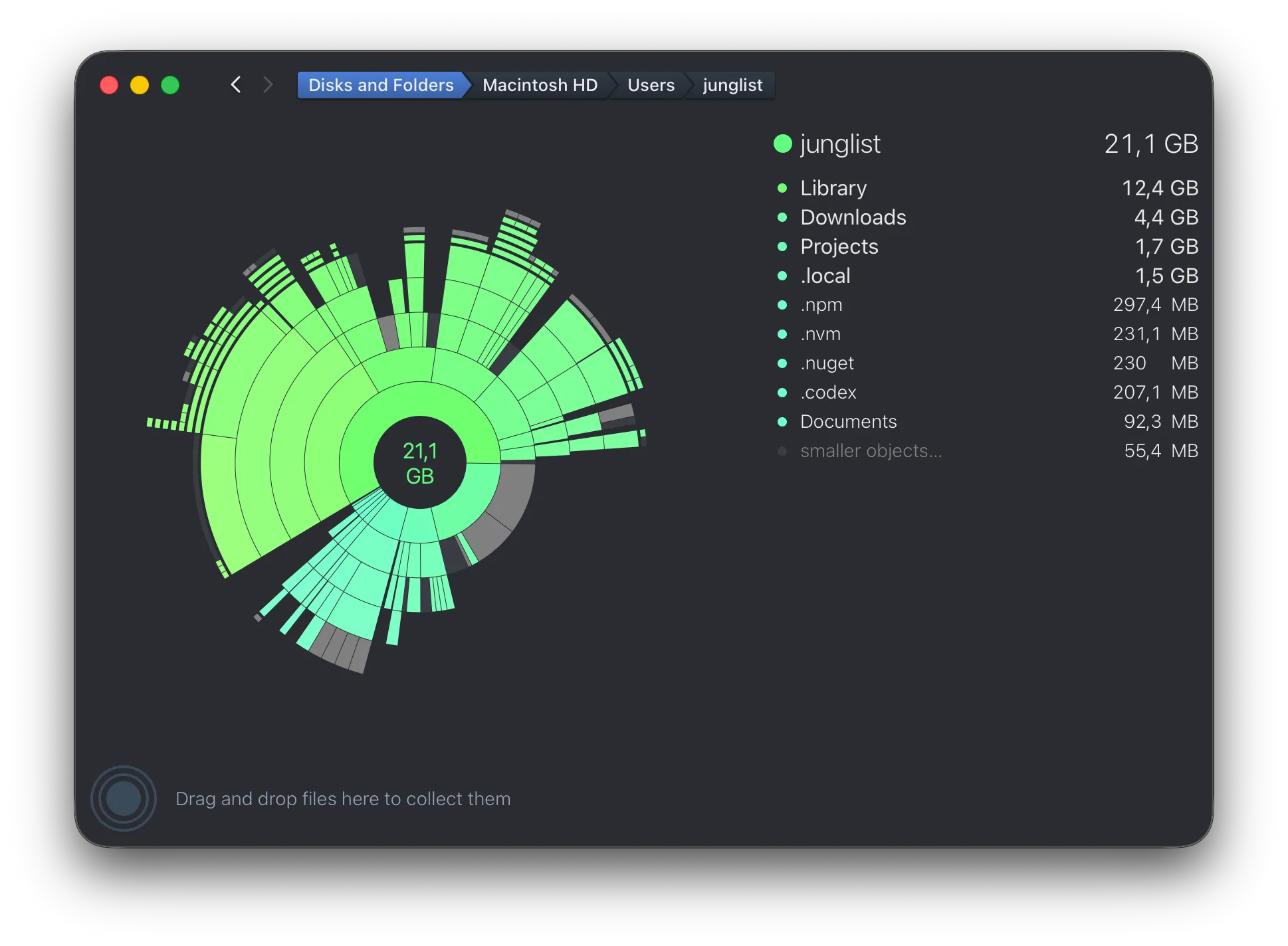
The chart is a nice visual addition to the folder list I was used to in TreeSize. You can click a slice of the chart to navigate through your disk. I still found the tree panel on the right more useful because it clearly shows each folder’s name and how much space it takes.
I also liked that you can star folders for quick access. After finding the folders that were taking most of my space, I could star them and return later to quickly check how much space they were using. If they had started growing again, I could inspect them and remove the files I no longer needed.
What DaisyDisk found
DaisyDisk doesn’t find unnecessary files automatically. You still have to go through the folders and decide what you no longer need.
The app makes this process easier by sorting folders by size, with the largest ones shown first. It also shows exactly how much space each folder takes.
As a software engineer, I found that a large part of my System Data consisted of developer files accumulated over the years: old simulators, SDKs, unused runtimes, and package manager caches.
After removing the files I no longer needed, I recovered about 100 GB of space.
Deleting files
DaisyDisk uses something called the Collector. When you want to remove a file, it isn’t deleted immediately. Instead, you add it to the Collector. Once you have collected everything you want to remove, you click the delete button. After a five-second countdown, the files are deleted permanently.
This extra step provides some protection against deleting a file by accident. For me, however, it feels unnecessary.
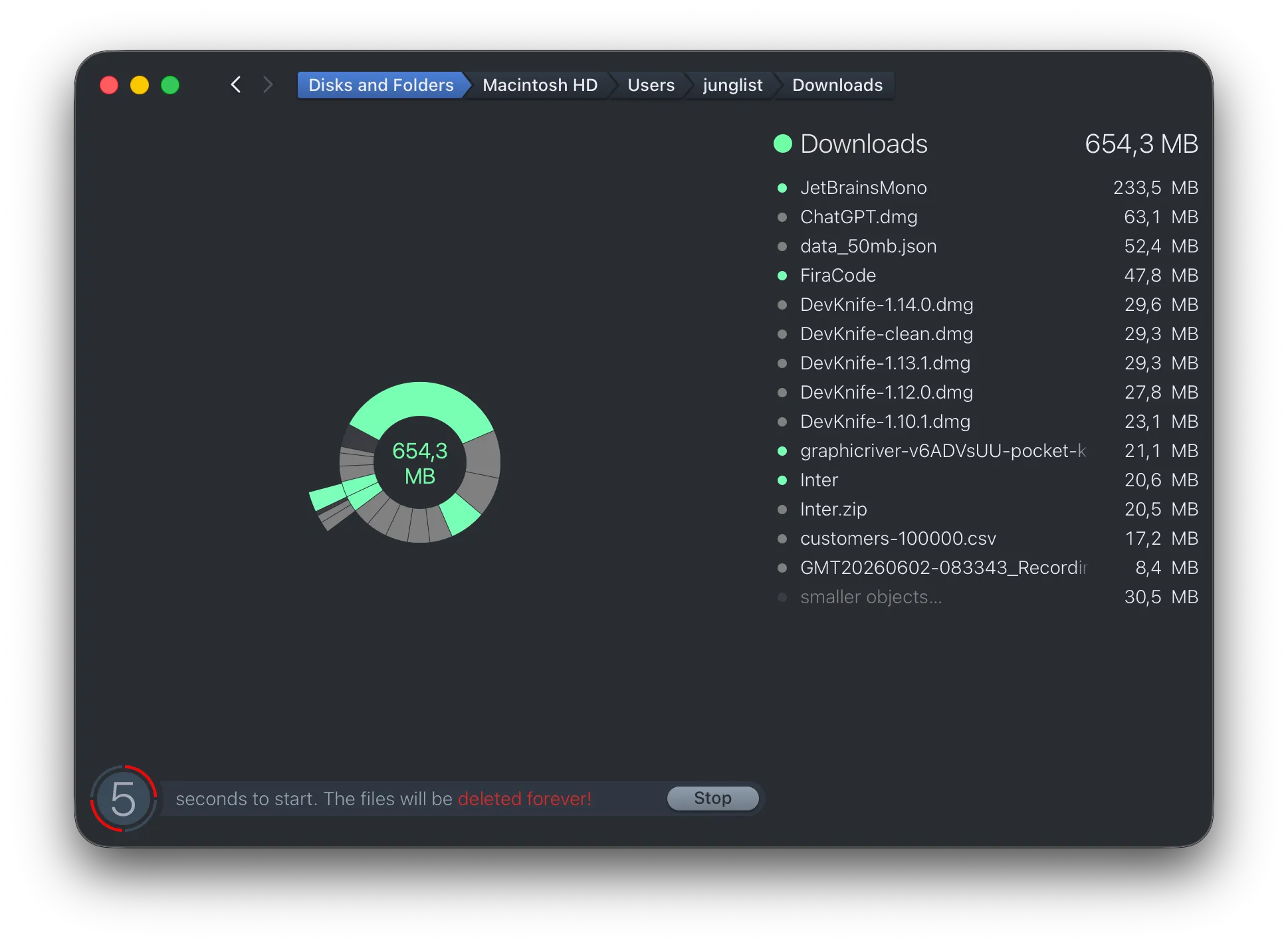
You can add a file to the Collector by dragging it there or by using the ⌘ + ⌫ shortcut.
I use a trackpad for everything, and dragging files one by one becomes tiring quite quickly. I couldn’t find a way to select multiple items, which made the process even slower.
Using the keyboard seems like a good alternative. You can move through the list with ↑ and ↓, open a folder with Return, and go back with ⌘ + ←. However, one thing about it bothered me a lot. When I added an item to the Collector, the selection jumped to the top of the list. I then had to navigate down the list again each time I added another item.
Is DaisyDisk worth it?
I needed an app to help me understand where my storage had gone, and DaisyDisk solved that problem. I recovered about 100 GB of space. Until then, my Mac had been running with an almost full disk most of the time. After making more space, it felt noticeably smoother.
DaisyDisk cost me €9.99 for a lifetime license. Although the deletion workflow could be better, recovering that much space made the app worth the money for me.
I would recommend DaisyDisk to anyone whose Mac is running out of storage and doesn’t know where to start looking for the files taking up all that space.